

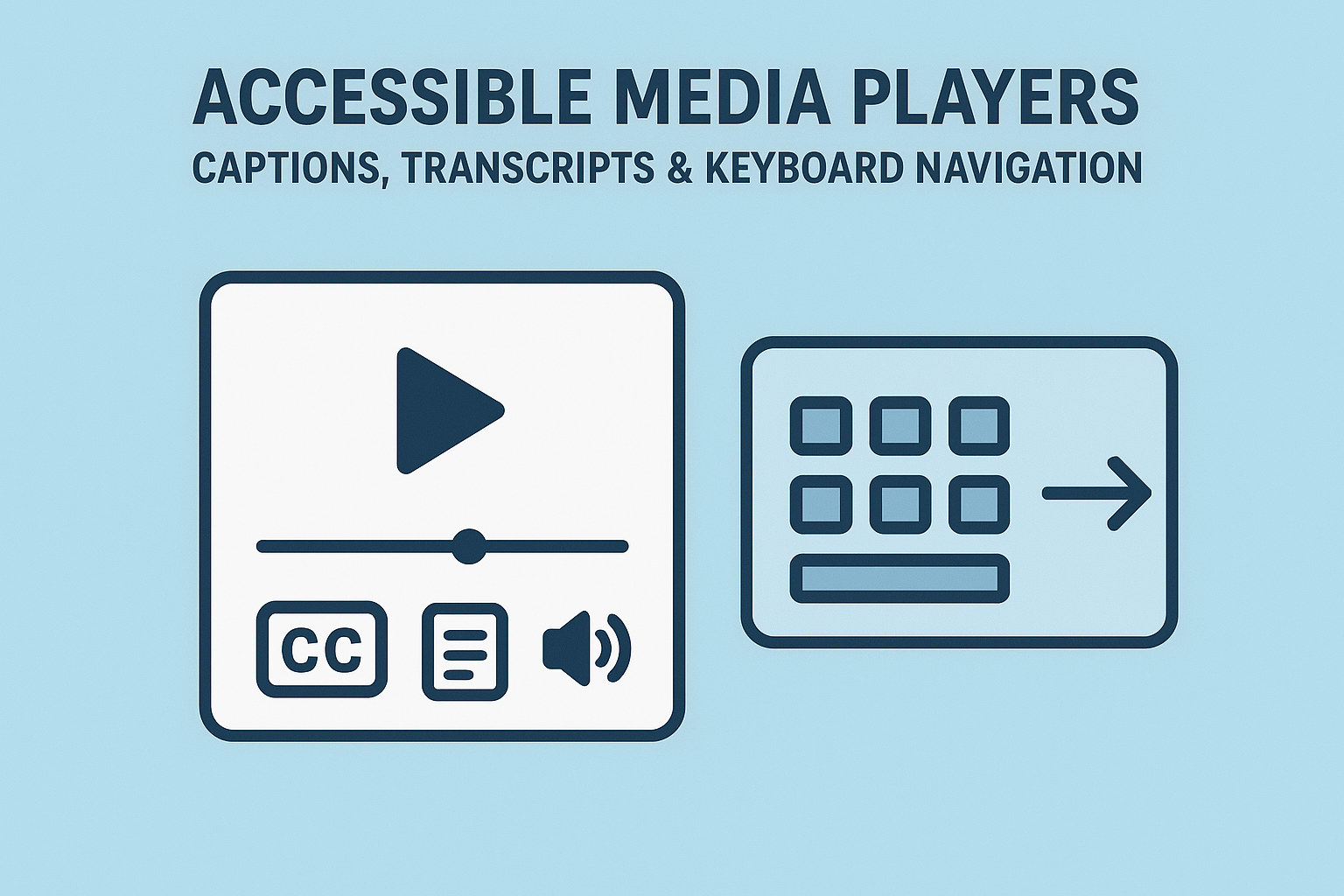
Accessible Media Players — Captions, Transcripts & Keyboard Navigation
Accessible Media Players — Captions, Transcripts & Keyboard Navigation
Introduction
Media players are vital for delivering audio and video content. From training videos to podcasts, rich media helps communicate effectively — but can exclude users if accessibility isn’t addressed. An accessible media player ensures everyone can perceive, operate, and understand content through captions, transcripts, keyboard access, and assistive technology support. Following WCAG 2.2 Guidelines 1.2 (Time‑based Media), accessibility isn’t optional — it’s essential.
Why Media Accessibility Matters
Providing accessible controls and synchronized alternatives ensures equal access for people with hearing, vision, or motor impairments. Accessibility also benefits users in noisy or quiet environments and enhances SEO discoverability.
- Captions and transcripts provide text alternatives to audio.
- Keyboard navigation enables precise control for all users.
- Assistive technology announcements improve orientation and usability.
Accessible Captions
Closed captions (not burned-in) are essential for users with hearing impairments and for understanding speech in noisy environments. Use native HTML 5 video subtitles or external caption files.
<video controls>
  <source src="training.mp4" type="video/mp4">
  <track
    label="English Captions"
    kind="captions"
    srclang="en"
    src="training-en.vtt"
    default
  >
</video>
Ensure captions are:
- Accurate and synchronized with the spoken content.
- Descriptive — including relevant sounds, speaker changes, and non-speech info.
- Available in multiple languages if applicable.
Transcripts for Audio & Video
Text transcripts provide a readable, searchable version of audio content — crucial for users who cannot hear or who prefer reading.
<article>
  <h2>Transcript for "Introduction to Web Accessibility"</h2>
  <p><strong>Narrator:</strong> Welcome to our accessibility course.</p>
  <p><strong>Instructor:</strong> In this lesson, we’ll explore WCAG principles.</p>
</article>
This text alternative fulfills WCAG 2.2 Criterion 1.2.1 (Audio‑only and Video‑only (pre‑recorded)) and improves comprehension for all audiences.
Keyboard Navigation in Media Players
Media controls must be accessible to keyboard users. Keyboard navigation should mirror native playback behavior defined by browsers and operating systems.
- Space — Play / Pause
- Right Arrow — Seek forward
- Left Arrow — Seek backward
- M — Mute / Unmute
- Up Arrow / Down Arrow — Volume controls
- F — Toggle fullscreen
- Esc — Exit fullscreen or close overlay
All focusable controls must have clear visible focus styling and accessible names via ARIA attributes.
Screen Reader Accessibility
Assign ARIA roles and states to announce status information such as “playing,” “paused,” or “muted.”
<button aria-pressed="false" aria-label="Play video">
  <svg role="img" aria-hidden="true">...</svg>
</button>
Use aria-live regions or role="status" to convey status changes dynamically:
<div role="status" aria-live="polite">Video paused</div>
Descriptive Audio
Audio descriptions help people who are blind or have low vision understand visual context not conveyed through dialogue. Offer a separate audio track or version including narration or scene cues.
<track
  kind="descriptions"
  src="training-desc.vtt"
  srclang="en"
  label="Audio Descriptions"
/>
Meeting WCAG Criterion 1.2.5 (Audio Description (pre‑recorded)) ensures equal comprehension for visual content.
Best Practices for Accessible Media Players
- Use semantic HTML5
<video>and<audio>elements as the foundation. - Ensure custom player controls mirror native functionality and accessibility behaviors.
- Include visible labels or icons with ARIA labels for every control.
- Support captions, transcripts, and optional descriptive audio tracks.
- Provide a clear focus order and visible focus indicator across all media controls.
Testing Your Media Player
Verify accessibility through manual and automated methods:
- Test keyboard-only playback (no mouse support).
- Activate captions and confirm synchronization.
- Use screen readers — NVDA, JAWS, or VoiceOver — to verify announcements for control states.
- Inspect ARIA roles with browser DevTools or WAVE.
Common Accessibility Issues
- Missing captions or transcripts: Content becomes inaccessible for users with hearing loss.
- Custom controls lacking ARIA roles: Screen readers can’t identify button types or states.
- Poor focus visibility: Keyboard users lose track of navigation.
- Unlabeled icons: Buttons represented only by visuals confuse assistive tech users.
Conclusion
Accessible media empowers every user to experience and comprehend your content. By integrating captions, transcripts, and full keyboard accessibility, you create inclusive video and audio experiences that align with WCAG 2.2 and ADA standards. Accessibility enhances engagement, comprehension, and brand reputation — one play button at a time.
Next Steps: Audit your media players, add proper captions and transcripts, and ensure keyboard and screen reader compatibility for every control. Aim for accessibility first in all future multimedia implementations.


